Valheim has a great modding scene built around BepInEx and Thunderstore, and the mechanics are the same wherever the server lives: BepInEx is the loader, it goes in next to the server executable, and every mod is a .dll (plus the odd config or asset file) that goes into BepInEx/plugins/. Your players run the same loader on their own PCs, usually through r2modman. That's the whole system. What differs between a self-hosted box and a hosted one is how the files get there, and on a LOW.MS server you don't touch files at all: the Mods tab talks to Thunderstore directly and handles BepInEx and dependencies for you. If you are weighing up hosts, you can spin up a Valheim server with us and the Mods tab is there from day one.
This guide covers both routes, plus the two things that go wrong most often afterwards, which are the same two things on every server ever: mismatched client mods, and a mod that didn't survive a Valheim patch.
Before you pick a mod
A few things worth knowing before you settle on a mod list.
Valheim 1.0 and mods
Valheim 1.0 launched on 9 September 2026, and for mods it's a bigger jump than a normal patch. If you're setting up a modded server now, or bringing an older modded world forward, this is the part to read twice.
- Mods need a 1.0 build. Iron Gate upgraded the Unity engine in 1.0, and plugins compiled against the old version can fail to load or throw on startup. Before you pick a mod, check its Thunderstore page for a release from after 9 September 2026, or a changelog entry that mentions 1.0. If the last update was in the summer, treat it as a maybe. Thunderstore's own "Deep North Update" category is the quickest shortlist of mods whose authors have actually rebuilt.
- There's no official mod support. Iron Gate's own 1.0 FAQ says it straight: they don't have official mod support and can't guarantee any mod works. After an update, you're waiting on each mod's author, not on Iron Gate and not on us.
- Worlds are saved differently. 1.0 stores a world as a folder of chunk files rather than a
.dband.fwlpair, and converts an older world the first time it loads. When Iron Gate trialled the new save system on the test branch, they noted it hadn't been tested with mods. So if your world has just been converted, back it up before you add mods to it. Tools that open or edit world files directly (world editors, map and save tools) need their own 1.0 updates.
Our save location guide explains the new world folders if you want the detail, and Valheim mods after the 1.0 update is the recovery guide for a modded server that stopped working on update day.
Crossplay and mods: what actually happens
You'll read in a lot of places, including in earlier versions of this guide, that turning crossplay on stops BepInEx loading and kills every mod on the server. That isn't right, and it's worth correcting properly because it's been sending people down the wrong path for a while.
All the -crossplay argument does is move your server off Steam's matchmaking and onto Iron Gate's PlayFab backend. It doesn't touch mod loading. BepInEx attaches when the game process starts, before the server has even read its command line, so a startup flag can't stop the loader. Run a crossplay server with mods on it and you'll see BepInEx start, load your plugins, and the PlayFab backend come up, all in the same log.
What crossplay genuinely does break is a particular class of mod: anything written on the assumption that every player arriving would be on Steam. Mods that key off a SteamID64 for admin or permitted lists, or that lean on Steam networking, can misbehave or throw errors when someone joins. Enough mods still carry that assumption that the blanket advice, keep crossplay off on a heavily modded server, is still sound. The reason usually given for it isn't.
There's also a hard limit that has nothing to do with BepInEx: console players can't install mods at all. If your server runs anything client-side, they can't match your mod list, so they can't join whatever the server does. Since 1.0 that covers Xbox, PlayStation 5 and Switch 2 players, plus Game Pass. That's the real trade-off to weigh, not the loader.
Server-side, client-side, or both?
Every Valheim mod is one of three things: server-side only, client-side only, or both. Always check the mod's Thunderstore page before you install it. Mismatched server/client mod sets are the #1 reason "I can't connect" tickets exist. There's a whole article on telling the three apart: Valheim client-side vs server-side mods.
Back the world up first
Especially if you're installing mods that touch world generation, building pieces, or items. Mods aren't going to corrupt your world most of the time, but the times they do you'll really wish you'd taken a backup. On a self-hosted server, copy the world folder out of worlds_local. On a LOW.MS server it's one click, Create backup on the Backups tab, and I'd lock that one so it never rotates away.
Installing mods on the server
On your own server
The self-host version, for completeness and because it's what the mod pages assume:
- Download BepInExPack Valheim from Thunderstore and unzip it over the server folder, so
winhttp.dll,doorstop_config.iniand theBepInEx/folder sit next tovalheim_server.exe. - Start the server once. BepInEx creates
BepInEx/config/andBepInEx/LogOutput.logon first run, and that log appearing is your proof the loader is attached. - Stop the server, download each mod from Thunderstore, and drop the
.dll(and anything else in the zip'spluginsfolder) intoBepInEx/plugins/. Check each mod's dependencies and install those too; Jotunn is the one that catches most people. - Start it again and read
LogOutput.logfor the plugin list.
Every update to a mod is the same dance again, which is the main reason mod managers exist.
On a LOW.MS server
None of that. Open the Mods tab. Three sub-tabs inside it: Installed, Browse and Profiles.
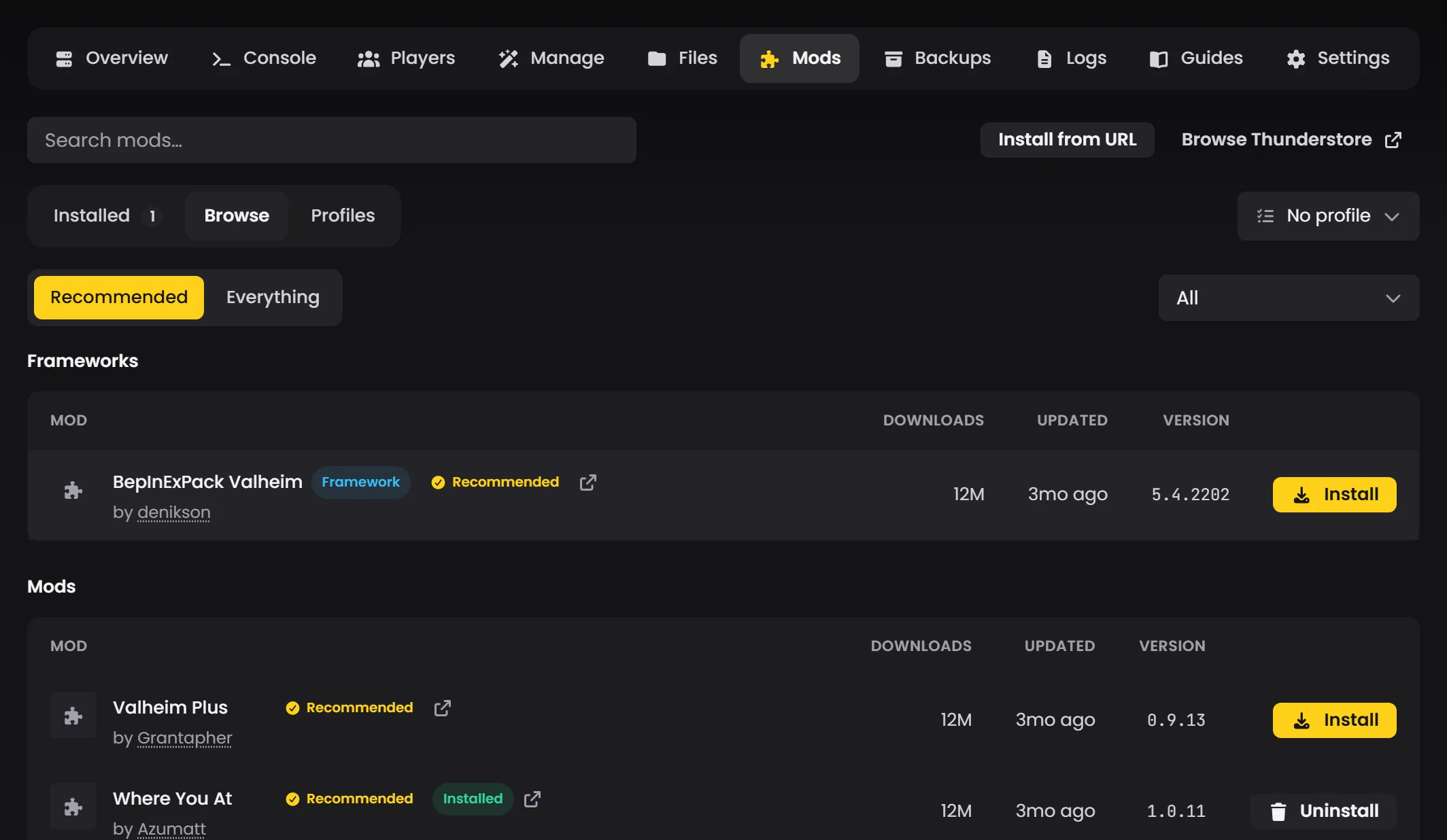
Browse is where you'll spend most of your time. Recommended is our curated shortlist for Valheim, split into Frameworks (BepInExPack itself, plus libraries like Jotunn that other mods depend on) and Mods. Everything is the whole Thunderstore catalogue for Valheim, with category, type and sort dropdowns to narrow it. The search box searches the lot at once. Each row shows the author, download count, when it was last updated and the version you'd get, and that last-updated date is the quickest 1.0 check there is. Prefer a link to a search? Install from URL takes a Thunderstore mod page address and shows you what it found before installing anything.
Hit Install and the panel works out what the mod needs:
- If it depends on other mods (almost everything depends on BepInExPack, plenty depend on Jotunn too), you see the full list before confirming, with anything already installed marked as such.
- If your server is online, it has to stop first. The panel handles the stop, and the install dialog says so before you confirm.
- Your server stays offline afterwards until you start it again yourself. That's deliberate: it gives you a moment to install several mods in a row without a restart between each.
When the server starts, BepInEx loads whatever's in the plugins folder, and the Console tab shows its startup banner followed by each plugin it picked up. Uninstalling works in reverse: if other installed mods depend on the one you're removing, the panel names them and removes them together rather than leaving something half-broken. Profiles keeps a named set of installed mods you can apply again later, handy for switching a server between a vanilla week and a modded one.
One thing the panel won't do is take a .dll you upload through the Files tab. That's a nudge, not a wall: the Mods tab is the only route that keeps dependencies and updates straight. If a mod genuinely isn't on Thunderstore, open a ticket with the details and we'll get it on the server for you.
Keeping mods updated
Valheim updates break mods, and mods update to catch up. Self-hosting, that's you re-downloading .dll files by hand every time. On our panel the Installed tab has one auto-update setting for the whole server, with three positions (off, frameworks only, or all mods) that apply the next time the server starts, and each mod can override it with Always or Never. When something's outdated, Update all brings the lot up to date.
I'd keep a world people are actively playing on at "frameworks only": BepInEx and the libraries are safe to keep current, while a gameplay mod updating under you mid-week is how a world gets weird. Need an older release of a mod back, because the newest one broke something? Open the menu on its row and pick Change version..., then set that mod's auto-update to Never, or the next start will pull it forward again.
Editing mod config files
After a mod runs for the first time it generates a config file in BepInEx/config/, one per mod. These are plain text, roughly INI format:
[Section]
## Description of the setting
# Setting type: Boolean
# Default value: true
MySetting = true
Change a value, save, restart. On a LOW.MS server they're under game/BepInEx/config/ on the Files tab and you can edit them in place; plain text files aren't subject to the .dll rule.
Some mods sync config from server to clients automatically (usually via a bundled library called ServerSync), and the Thunderstore page will say. For those the server's copy wins and everyone picks it up on join. Others expect the same config file on the client side, which your players handle themselves via r2modman.
Setting up your players' clients
Client-side mods are entirely up to your players. The easiest path by a long way is a mod manager. Don't have them install BepInEx by hand unless they're comfortable with it.
r2modman (recommended)
r2modman by ebkr is what we'd suggest. It's free, actively maintained, and handles dependencies automatically.
- Download and install r2modman.
- Pick Valheim as the game.
- Create a new profile for your server (e.g. "My Server Mods").
- Search for and install the same mods the server has, at the same versions.
- Click Start modded to launch Valheim with the mods enabled.
If you've pinned a specific list by version, export the profile from r2modman as a code and have every player import it. Matching versions across the group is the single most reliable way to avoid "I can't connect" tickets.
Thunderstore Mod Manager (Overwolf)
The Thunderstore Mod Manager is the alternative. Same idea, slightly different UI.
Manual install (advanced)
If a player really wants to install BepInEx and mods by hand on their client:
- Install BepInExPack into the Valheim game directory (typically
C:\Program Files (x86)\Steam\steamapps\common\Valheim\). - Drop mod
.dllfiles intoBepInEx/plugins/inside that directory. - Launch Valheim normally through Steam.
It's fine, but a mod manager is much harder to mess up. For groups of more than two or three people, manual installs aren't worth the support overhead.
Troubleshooting
Mods aren't loading
In rough order of likelihood:
- Is BepInEx loading at all? Look for the BepInEx banner and the plugin list in the server output (the Console tab, on our panel) after a start. If your mod is named there, the loader is fine and the problem is the mod. If there's no banner at all, BepInExPack is missing or out of date: on our panel check the Installed tab shows it, update it if it's behind, and open a ticket if it's current and still silent.
- Client/server mismatch. Every player needs the same mods at the same versions. r2modman makes this obvious: anyone with a different modlist will just fail to connect.
- Mod isn't built for your current Valheim version. After game updates this is usually the culprit, and after 1.0 it's the culprit more often than not. Check the mod's Thunderstore page for a 1.0 release.
- Missing dependencies. The Thunderstore page lists each mod's dependencies. BepInEx names the missing one in the log (by its internal ID, so
com.jotunn.jotunnrather than Jotunn). The Mods tab installs dependencies with the mod, so on our servers this is rare unless something was uninstalled later. - A mod that assumes Steam, on a crossplay server. Read the log before you assume this one: BepInEx does load with crossplay on, so if the loader started and your plugins are listed, crossplay isn't stopping them. If a specific mod is throwing on join, though, and it handles admin lists or networking, this is worth testing. Untick Crossplay on the Manage tab, restart, and see if it clears.
BepInEx/LogOutput.log is the file to read for anything weird on the server side (game/BepInEx/LogOutput.log on the Files tab, on our servers). It's verbose, but the actual problem is usually obvious if you scroll to the end.
Server crashes after adding a mod
Take the last mod you added back out (the Installed tab, one uninstall at a time) and start again. If it boots, that was it. If not, the one before, and so on back until it does.
Players can't connect after adding a mod
Almost always a client/server mod mismatch.
- Check whether the mod is server-side, client-side, or both.
- Verify every player has the same mods at the same versions.
- Some mods enforce strict version matching and will kick clients on a mismatch. The Thunderstore page will say.
- The fastest "nuke and start over" fix: have the player wipe their r2modman profile and reinstall the same list from scratch.
Mods stop working after a Valheim update
Normal. Game updates regularly break mods, sometimes for a few hours and sometimes for a week. The drill:
- Don't update your server the moment a Valheim update drops. A dedicated server keeps running whatever build it started with until you update it (on our panel the Game updates card on the Overview tab tells you one is waiting), so you have a window.
- Check each of your installed mods on Thunderstore for a compatible release.
- If a critical mod hasn't been updated yet, hold off. Not for long, though: your players' games update on their own, and then they can't join a server that hasn't, so the window is a day or two rather than a week. Rolling a server back to an older Steam branch isn't something our panel offers. A world already converted to the 1.0 folder format can't go back before 1.0 anyway. If you think you need that, open a ticket and we'll talk it through. Usually it's easier to wait it out.
Mod load order
BepInEx handles most load order automatically, so you usually don't need to worry about it. If you do hit a load-order conflict, the mod's docs will say what needs to go first. Open a ticket and we'll adjust.
Need help?
Mod setups can get messy, especially the first time. If you're stuck, open a ticket from the panel with the mod list and the tail of LogOutput.log. We deal with Valheim mod installs every day and can usually spot the problem in a few minutes, and we'd rather bisect it with you than have you rebuild a world.