Finding your invite code ("Show Invite Code")
Windrose does not use the classic "server IP + port" model. Your dedicated server uses peer-to-peer networking through the Epic Online Services relay, so players connect using an invite code instead of an address. If you are still choosing a host, you can rent a Windrose server from us and copy the invite code from the control panel.
This is the fastest and recommended method.
- Log in to your LOW.MS Control Panel.
- Open your Windrose service (your server's main page).
- Click the Show Invite Code action button.
- Copy the code shown (it will look like
fe3f5205).
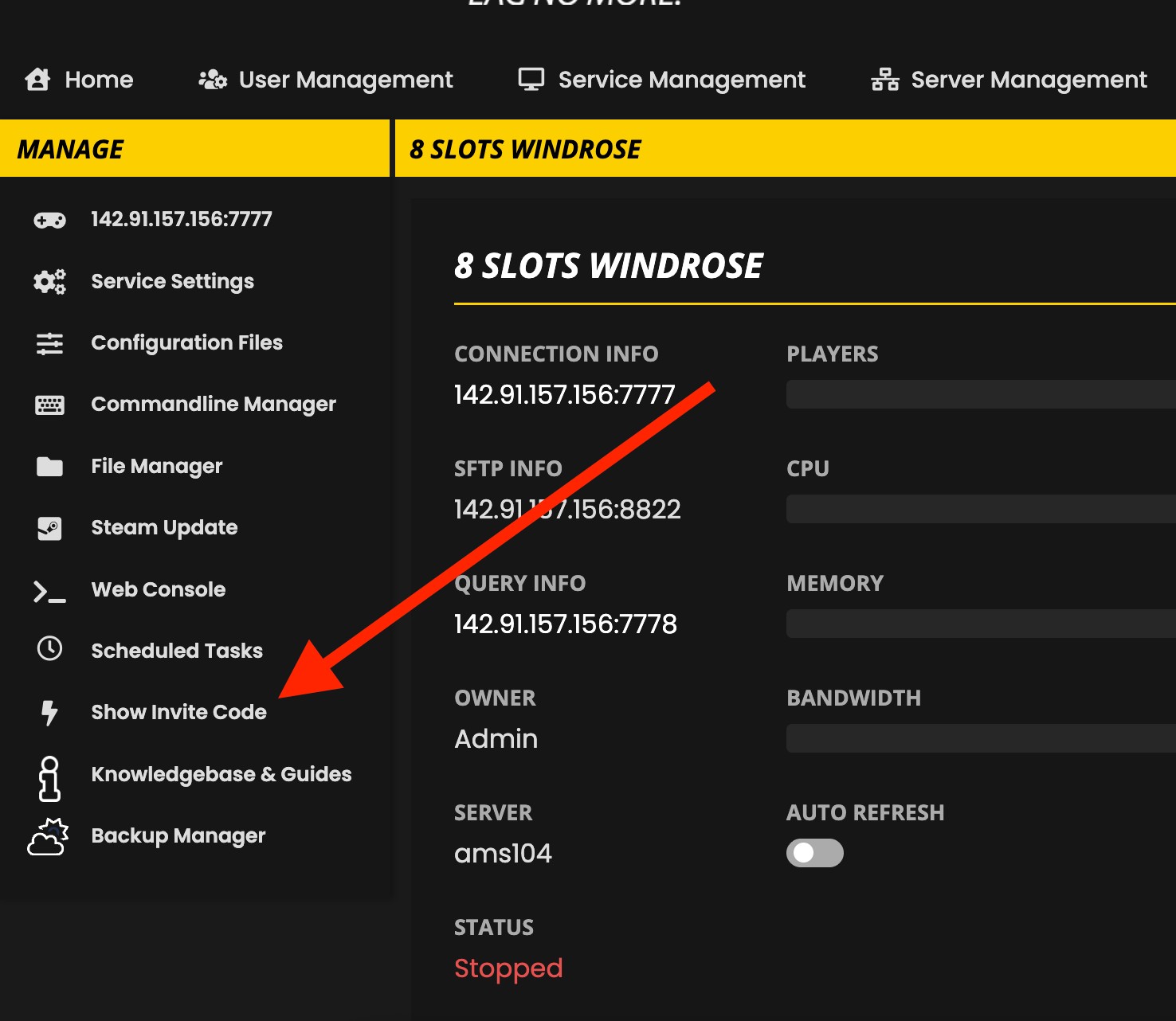
If it says "Invite code not available yet"
Your server generates the invite code on its first successful boot.
- Go back to your service page.
- Click Start to boot the server.
- Wait until the server finishes starting.
- Click Show Invite Code again.
Fallback options (if needed)
If the button is unavailable or you want to double-check:
Web Console (startup log): In the LOW.MS Control Panel, open the Web Console tab and look for a line like:
> InviteCode : fe3f5205File Manager: You can also find the invite code inside
R5\ServerDescription.json(details below).
Connecting in-game
Each player joins the same way using the invite code.
- Launch Windrose.
- Select Play.
- Select Connect to Server.
- Paste the invite code.
- Press Enter.
There is no server browser and no "join by IP" option in Windrose, so the invite code is required every time.
Sharing with friends
To invite others, you only need to send them the invite code.
- Send the code in Discord, Steam chat, text message, etc.
- Your friends follow the same steps: Play → Connect to Server → paste code → Enter
Tip: invite codes are short but easy to mistype, so encourage copy/paste.
If you ever need to rotate the code, a leak, a kicked member, whatever the reason, we've got a separate guide on changing your Windrose invite code that walks through it.
Changing your server name, password, or player cap
These settings live in a single file:
R5\ServerDescription.json
Windrose "owns" this file and rewrites it. You can edit it, but you must do it safely.
Important: Stop the server before editing JSON files.
If you edit
ServerDescription.json(or any Windrose JSON config) while the server is running, your changes can be overwritten. Always Stop → Edit → Save → Start/Restart. There's a dedicated article on why this happens if you want the deeper explanation.
Step-by-step
- In the LOW.MS Control Panel, click Stop on your Windrose server.
- Open File Manager.
- Navigate to:
R5\ServerDescription.json - Open the file in the editor.
- Edit the fields you want (examples below).
- Save the file.
- Return to the service page and click Start (or Restart) to apply changes.
Fields you can edit
In ServerDescription.json, you will typically edit these keys inside ServerDescription_Persistent:
ServerName(your public server name)IsPasswordProtected(trueorfalse)Password(only used if password protection is enabled)MaxPlayerCount(player cap)
Example (snippet):
{
  "ServerDescription_Persistent": {
    "InviteCode": "fe3f5205",
    "IsPasswordProtected": false,
    "Password": "",
    "ServerName": "",
    "MaxPlayerCount": 8
  }
}
Difficulty and world settings (WorldDescription.json)
Gameplay difficulty and world tuning are stored per-world in:
R5\Saved\SaveProfiles\Default\RocksDB\<GameVersion>\Worlds\<WorldID>\WorldDescription.json
This is where you can change values related to difficulty and gameplay tweaks (for example mob health, boarding difficulty, co-op scaling).
You may see two other folders next to RocksDB, both added in game update 0.10.0.5.120. RocksDB_v2 holds runtime files the game writes while it's running, and RocksDB_v2_Backups holds the game's own automatic backups. Your live world config is in RocksDB, not in either of those, and RocksDB_v2 should be left alone.
How to edit safely
- Stop the server from the LOW.MS Control Panel.
- Open File Manager.
- Browse to the
WorldDescription.jsonpath for your world. - Make your changes and Save.
- Start/Restart the server.
Don't rename the <WorldID> folder while you're in there. The save database keys off that ID, and renaming it leaves the server unable to find your world.
Example tweaks
The exact field list can vary by version, but here are two common examples:
Combat difficulty preset
Set
CombatDifficultyto a preset likeEasy,Medium, orHard.Mob health scaling
Adjust
MobHealthMultiplierto make enemies tougher or weaker.
For the full list of supported fields and the tagged JSON format Windrose uses, check our Windrose Server Configuration Guide. There's also a DedicatedServer.md file in your server's install root that documents the parameters as-shipped by Kraken Express.
Troubleshooting
"I don't see an invite code"
Click Show Invite Code again after the server has fully started.
If it still does not appear, open the Web Console and check for startup errors. The invite code normally appears in the log as:
> InviteCode : fe3f5205
"My friends can't connect"
- Confirm the server is running in the LOW.MS Control Panel.
- Double-check the invite code matches exactly. Treat it as case-sensitive and avoid extra spaces.
- Have them paste it into Play → Connect to Server (not anywhere else).
- Make sure each player has completed the singleplayer tutorial. Windrose silently blocks multiplayer connections until they have. The connection troubleshooting guide covers this in more detail.
"My changes to ServerDescription.json keep getting reverted"
- You almost certainly edited the file while the server was running.
- Fix: Stop the server, edit the file, save, then Start/Restart.
What LOW.MS does not cover
LOW.MS support can help with hosting and panel basics (starting the server, finding files, viewing logs, and locating your invite code). For gameplay questions, balance suggestions, mods, or game bugs, you will want to use the official Windrose community resources (for example their official community pages or Discord).