SFTP on LOW.MS runs on port 2022, and every server has its own SFTP login, which you'll find on that server's page in the control panel. Any SFTP app works. I'll use FileZilla here because it's free and it's what most of our tickets mention.
The Files tab is fine for a config edit or two. Once you're moving a whole world, a modpack or a few hundred files, SFTP is quicker and far less likely to time out halfway through.
Your SFTP login details
You need four things, and all four are in one place: open your server's Overview tab and select SFTP on the Connection details card.
- Host: your server's address. If your server has a name, the IP is shown underneath it, and either one works.
- Port:
2022. Not 22, not 21, and not your game port. - Username: made for you. It's your first name and a short code for that server, something like
alex.3f9a1c2b. Not your email address. - Password: generated for you as well. Press the eye icon to see it, or the copy icon beside it to copy it.
This isn't your control panel login, and it isn't one login for everything. Each server has its own, so with two servers you'll have two usernames and two passwords. Anyone you've shared a server with gets a login of their own too, as long as they have both file and console access on it.
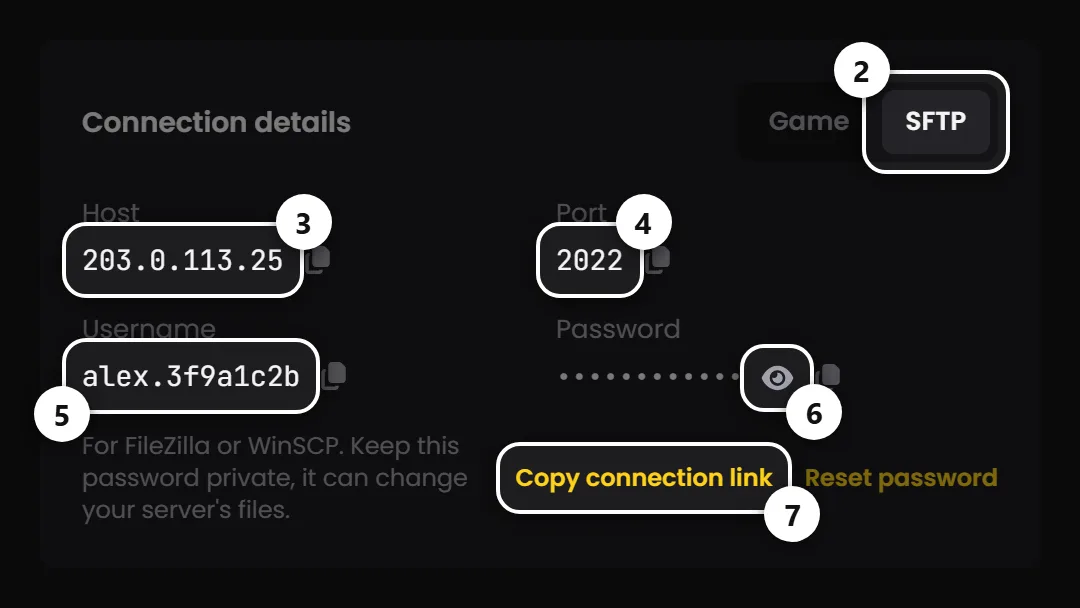
Tip: On LOW.MS, Copy connection link on that card copies an sftp:// address with your username, host and port already filled in (never the password). The step-by-step version of all this, including how to reset the password, is in the Guides tab of your server.
Connecting with FileZilla or WinSCP
Grab FileZilla Client from filezilla-project.org (not FileZilla Server, people download the wrong one all the time). Then:
- Open File, then Site Manager, and press New site.
- Set Protocol to SFTP - SSH File Transfer Protocol.
- Put your host in Host and
2022in Port. - Set Logon Type to Normal and fill in User and Password.
- Press Connect.
The first connection pops up an Unknown host key warning. That's expected. Tick Always trust this host, add this key to the cache and press OK.
You can use the Quickconnect bar instead, but type sftp:// in front of the host, or just paste the connection link from the control panel into it. Leave the sftp:// off and FileZilla tries plain FTP, which fails.
WinSCP is the same idea: pick SFTP as the file protocol and use the same four details.
Where your files are
Once you're in, you'll see two folders, game and config. That's the whole server, laid out the same way the Files tab shows it, and anything new you upload has to go inside one of the two.
Every game puts its saves and configs somewhere different. Our save location guides cover where the world sits for each game, for example Palworld, 7 Days to Die and Valheim.
Stop the server before you replace a save. A running server keeps writing to its world, and it'll happily overwrite what you just uploaded. On some games the files are locked while it runs anyway, so the upload just fails.

Gotcha: some config files are written by the control panel from your server's settings. If a setting has a field on the Manage tab, change it there. SFTP won't overwrite those files at all, and FileZilla's log will tell you the file "is generated from your server settings".
Files you can't upload
SFTP has the same upload filter as the Files tab. Programs and scripts are blocked: .exe, .dll, .so, .bat, .cmd, .ps1, .vbs and a few other executable types. FileZilla logs a refusal saying the file "is a program or script file" and moves on, so check the Failed transfers tab at the bottom after a big upload.
This catches people out with mods. Everything in a mod folder uploads except the .dll, so the folder looks installed and nothing happens in game. BepInEx mods are the usual culprits, along with native UE4/UE5 mods.
What to do instead:
- Check the Mods tab on your server first. A lot of popular mods and frameworks install from there in one click, and the panel puts the DLLs in for you.
- If your mod isn't there, or your server has no Mods tab, open a ticket with a link to it and we'll take a look.
Text files, configs, saves, maps, .pak files, .lua scripts and .zip archives all upload normally, up to 10 GB for a single file.
When it won't connect
"Cannot establish FTP connection to an SFTP server". That's FileZilla talking FTP to an SFTP port. Set the protocol to SFTP, or add sftp:// in front of the host.
Timed out or connection refused. Nine times out of ten it's the port. Check it's 2022, and copy it from the control panel if you're not sure.
"Authentication failed". Copy the username and password from the control panel again rather than typing them, and remember it's the SFTP login for that server, not your account login. Don't keep hammering it either: ten wrong passwords in ten minutes blocks your address for 15 minutes, so I'd stop and wait it out.
No SFTP tab on the card. On a server somebody shared with you, you need both file and console access, so ask the owner. On your own server, open a ticket and we'll look.
Uploads fail partway through a folder. Look at Failed transfers. If it's only .dll or .exe files, see the section above. If it's save files, stop the server and try again.
Still stuck? Open a ticket from the control panel and paste the last few lines of FileZilla's message log. It usually tells us exactly what went wrong.