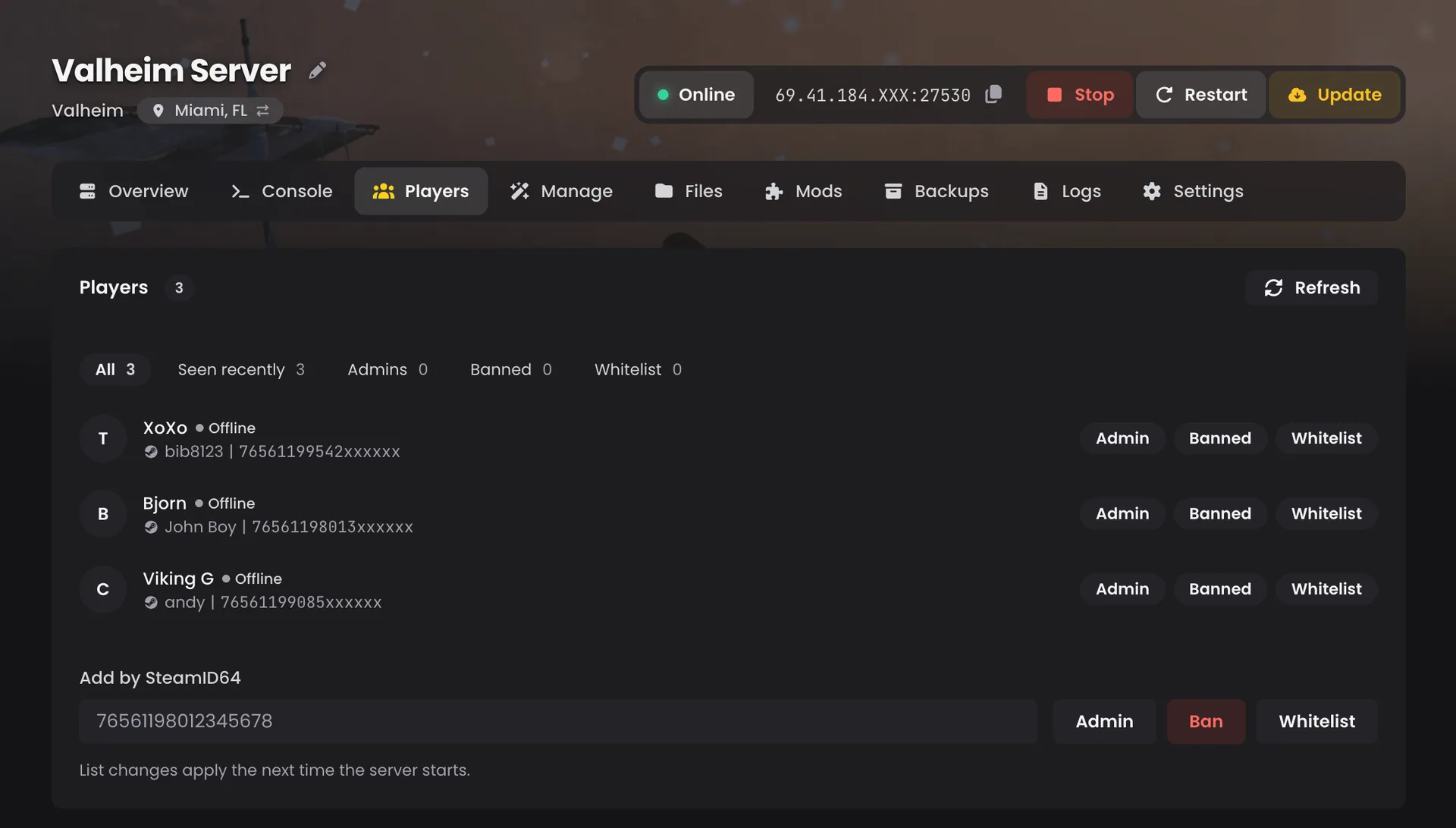
Your players, without the console commands
Running a game server usually means looking after the people on it. Someone is griefing, a friend needs admin, the whitelist needs one more name. With most hosts that means opening a console, remembering the exact command for that game, finding the player's SteamID, and hoping you typed it right.
Our control panel has a Players tab that does it for you.
The Players tab is part of the new control panel. If you are still on the old panel, you won't see it there.
How it works
- Open your server in the control panel and select the Players tab.
- Find the player in the list, or paste their ID into the add form if they have never joined.
- Use the buttons next to their name to kick, ban, make admin or change the whitelist.
- If the game needs a reason, the panel asks you for one.
- The panel tells you whether the change applies straight away or the next time the server starts.
- The action is recorded in your server's Activity log.
See who's playing
The Players tab lists everyone who has joined your server. It shows who is online right now and when each player last joined or left. You can filter to just the people seen recently, or to a single list such as your admins, your bans or your whitelist.
Need to add someone who has never joined? Paste their ID into the add form and put them straight on the list you want.
Kick, ban and promote in one click
Every player has buttons next to their name for the things you actually do:
- Kick someone who needs a moment to cool off
- Ban a griefer, with a confirmation step so nobody gets banned by accident, and unban them later where the game supports it
- Make admin or remove admin
- Add to or remove from the whitelist
If a game needs a reason for a kick or ban, the panel asks for one. On games with a live connection, such as Minecraft, Rust, 7 Days to Die, ARK and The Isle, the action happens straight away. On others, such as Valheim, the panel updates the game's own admin, ban and whitelist lists, and the change applies the next time the server starts. The panel always tells you which.
A record of who did what
Every kick, ban and list change is recorded in your server's Activity log: who did it, to whom, and when. If you share your server with friends, you can see exactly what happened while you were away.
Share the job safely
If you've given friends access to your server, they can see the player list. Only people you've allowed to use the console can kick, ban or change the lists, so you stay in control of who has that power.
FAQ
Do kicks and bans take effect straight away?
On games with a live connection, such as Minecraft, Rust, 7 Days to Die, ARK and The Isle, yes. On games such as Valheim, the panel updates the game's own lists and the change applies the next time the server starts. The panel tells you which applies to your server.
Does it work on every game?
Not yet. Live kick and ban work on Minecraft, Rust, 7 Days to Die, ARK and The Isle. List-based management covers Valheim and a few others. Some games don't have player management yet.
Can I add a player who has never joined my server?
Yes. Paste their ID into the add form and put them straight on the admin, ban or whitelist list.
Can my friends kick or ban players?
Friends with access to your server can see the player list. Only those you've allowed to use the console can kick, ban or change the lists.
Can I see who made a change?
Yes. Every kick, ban and list change appears in your server's Activity log, showing who did it, to whom, and when.
Is the Players tab on the old control panel?
No. It is only on the new control panel.
Try it
Open your server in the control panel and select the Players tab: control panel