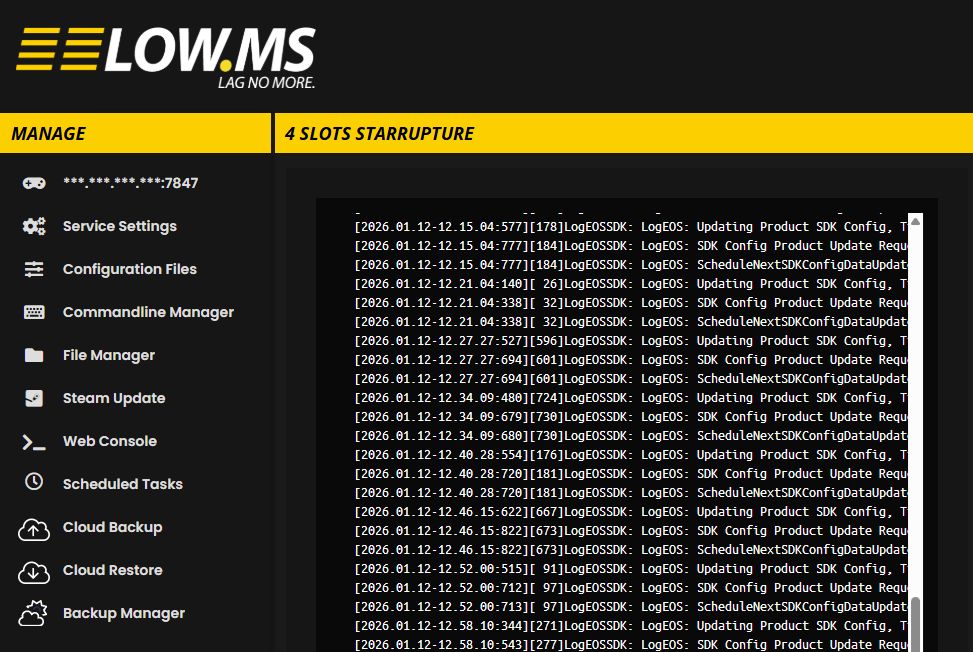
If you see an error like:
LogRemoteControl: Error: Web Remote Call deserialization error ... DedicatedServerSettingsComp does not exist
…it's usually tied to how StarRupture's Server Manager interacts with a server after a save has already been loaded.
This page covers the most common errors and the fastest fixes for LOW.MS servers. If you do not have a server with us yet, you can spin up a StarRupture server here.
1) "Web Remote Call deserialization error … does not exist"
What it usually means
This commonly appears when you try to use Manage Server / Server Manager after the server has already loaded a save/session.
Fast fix (LOW.MS)
- Restart the server in the LOW.MS Control Panel
- Wait 60–90 seconds
- Join the server via Join Game → Dedicated Server (don't open Manage Server unless you're switching saves)
If you're using DSSettings.txt
If DSSettings is present and the server auto-loads a save on boot, you often don't need Manage Server at all:
- start server
- join via Join Game
2) "Server is online but we load into an empty/new session"
Cause
After a restart, the server may not be running the save you expect until it's loaded again.
Fix
- Admin should do Manage Server → Load Game → Start Game
- Then everyone joins via Join Game → Dedicated Server
Prevent it (recommended)
Configure DSSettings.txt to always load the correct save on boot.
3) Connection timeout / can't connect
Fast checks
- Confirm server status is Running in LOW.MS
- Restart the server and wait 60–90 seconds
- Try joining with:
IP:Port(example1.2.3.4:7777)- or IP only (some builds assume default port)
- Confirm you're using the Join password (not the Management password)
Ports note
StarRupture uses UDP 7777 for the game and the game port + 1 for the query port (e.g. 7778). On LOW.MS these are configured and open automatically – just use whatever your control panel shows for your specific server. If you changed ports, make sure players have the updated join address.
4) "Wrong password"
- Players must use the Join password (PlayerPassword)
- Admins must use the Management password for Manage Server
- If you're locked out, reset via:
- delete
Password.json(management) and/orPlayerPassword.json(join) - restart the server
- delete
5) Still stuck?
If you've done all the above and it still won't behave, the quickest "clean" test is:
- Restart the server in LOW.MS
- Join via Join Game → Dedicated Server
- If join works, then the issue is specifically with Manage Server state (save already loaded)
- Only use Manage Server when you need to load/change saves, then go back to joining normally