So you've been running a DayZ server somewhere else and you want to bring your world across to LOW.MS. Maybe your group has spent months building bases at Tisy, or you've finally got the loot economy tuned the way you like it. Good news: DayZ keeps everything in a handful of files, and once you know where to look, moving a server is mostly drag and drop. If you do not have a server with us yet, our DayZ server hosting plans are a good place to start.
DayZ doesn't really do "singleplayer saves" the way most survival games do. There's no Local vs Cloud prompt, no folder of named save slots in %LOCALAPPDATA%. Player progress, base structures, vehicles, stashed gear and the whole map state live entirely on the server, inside a folder called storage_1. Migrate that folder and your players reconnect to the world they left.
Where DayZ saves live on the server
Everything DayZ persists sits inside the active mission folder:
mpmissions/dayzOffline.chernarusplus/
That's the path for Chernarus, the default map. If you're running Livonia it's mpmissions/dayzOffline.enoch/, and Sakhal (the Frostline DLC map) is mpmissions/dayzOffline.sakhal/. Community maps from the Workshop each have their own mission folder name, so check the map's Workshop page if you're not sure.
Two subfolders inside the mission folder matter:
mpmissions/dayzOffline.chernarusplus/
├── db/                  <- loot economy config (types.xml, events.xml, globals.xml)
└── storage_1/           <- the save state
    ├── players.db       <- player accounts and inventories (SQLite)
    └── data/            <- world state: bases, vehicles, stashed loot, dynamic events
        ├── vehicles.bin
        ├── events.bin
        ├── dynamic_*.bin
        └── (other persistence binaries)
storage_1/ is the part that updates while the server runs. players.db is a SQLite database holding every player's character: health, inventory, position, alive/dead state. The .bin files in storage_1/data/ are binary blobs that store everything currently existing in the world: built bases, parked vehicles, dropped loot, tents, barrels, fences, the lot.
Quick note on the 1 in storage_1. That number comes from the instanceId in serverDZ.cfg. Default is 1, so default storage is storage_1. If you or your old host changed instanceId, the folder on disk will match (storage_2, and so on). Worth checking before you start copying things across.
The db/ folder next to it is a different beast. That's your loot economy config: types.xml, events.xml, globals.xml, messages.xml. It controls what can spawn, not what currently exists. If you've spent time tuning loot rates, that work lives here, and you'll want to copy it across alongside storage_1/ when you migrate.
The other config file worth knowing about is serverDZ.cfg in the server root. The line that picks which mission folder to load is nested inside the Missions class:
class Missions {
    class DayZ {
        template = "dayzOffline.chernarusplus";
    };
};
If your old host was using a custom mission name, this has to match on the new server too.
Before you do anything
Two things. Both important.
Stop both servers before copying anything. DayZ writes to storage_1/ actively while running. Pulling the files out from under a live server gets you half-written .bin files and a corrupt save. Stop the service on your old host through whatever panel they give you. On LOW.MS, press Stop at the top of your server's page in the control panel.
Back up the LOW.MS server's existing save first. Even on a fresh install where there's nothing to lose, get into the habit. In the control panel, open the Backups tab and press Create backup. Takes seconds, gives you a fall-back if the migration goes sideways.
Pulling the files off your old host
Most DayZ hosts give you FTP or SFTP access. Connect with WinSCP or FileZilla using the credentials from your old panel and download:
- The entire
storage_1/folder from insidempmissions/dayzOffline.chernarusplus/(or whichever mission your server runs) - The
db/folder from the same location, if you've customised loot serverDZ.cfgfrom the server root (handy as a reference even if you don't import it wholesale)- Any
@-prefixed mod folders from the server root, plus thekeys/folder
A vanilla storage_1/ runs a few hundred megabytes after a busy wipe. Heavily modded servers with lots of base building can push past a gigabyte. Either way, SFTP handles transfers more reliably than a browser upload.
Uploading your world to LOW.MS
On a LOW.MS server your mission folders live in config/mpmissions/. The game/mpmissions folder next to it is the untouched copy the game ships, and your server doesn't read it once its own copy exists, so everything below goes into config/mpmissions.
- Set the map first. On the Manage tab, set Mission under General to the mission your old server ran (
dayzOffline.chernarusplus,dayzOffline.enoch,dayzOffline.sakhalor a community map's folder name), then start the server once so its folder appears inconfig/mpmissions. A community map's mission isn't in the server files, so upload its whole mission folder toconfig/mpmissionsinstead. - Stop the server.
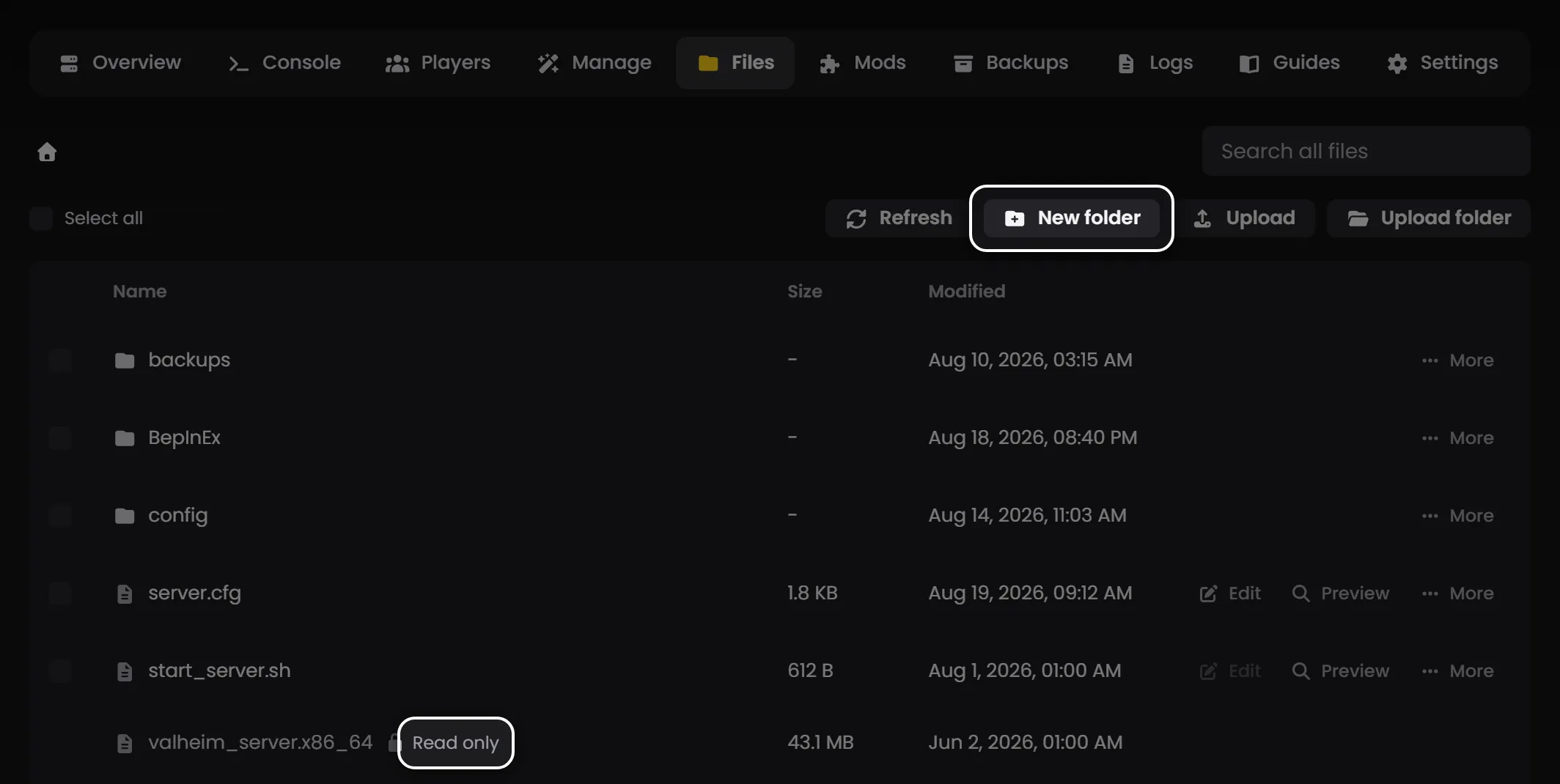
- Open the Files tab and go to
config/mpmissions/<your mission>/. - Delete the existing
storage_1/if there is one. - Upload your old
storage_1/with Upload folder. If your old host used a differentinstanceId, rename the folder tostorage_1first: LOW.MS servers always run instance 1. - Bring your
db/folder across too if you tuned your loot. Download the existing one first so you can go back.
For a big storage_1/ (and it will get big on any long-running server), SFTP is easier than a browser upload: it shows progress and picks up again if the connection drops. Your SFTP host, port, username and password are on the SFTP tab of the Connection details card on the Overview tab. Connect with WinSCP or FileZilla and upload to the same config/mpmissions/<your mission>/ folder.
If you're also moving mods, install the Workshop ones from the Mods tab rather than copying their folders. A mod that isn't on the Workshop goes in config/mods on the Files tab and gets listed under Uploaded Mods on the Manage tab, and its keys are picked up automatically. See the DayZ server configuration guide for more.
Pointing serverDZ.cfg at the right mission
This is the step people forget, and then they wonder why the server boots into an empty Chernarus when they were expecting Livonia or a modded map.
Open serverDZ.cfg in the server root and find the template line inside class Missions:
template = "dayzOffline.chernarusplus";
If your migrated storage_1/ came from a Livonia server, this needs to be dayzOffline.enoch. Sakhal is dayzOffline.sakhal. Modded maps use whatever name the map mod ships. Namalsk, Deer Isle and Banov each have their own. The string here has to exactly match the folder name inside mpmissions/, or the server falls back to defaults and ignores your imported save entirely.
Save the file.
Tip: On LOW.MS there's nothing to edit here. The Mission field from step 1 writes that line for you on every start, and a hand edit to serverDZ.cfg would be overwritten anyway.
Starting up
Start the server back up with Start at the top of its page. First boot after importing a populated storage_1/ runs a bit slower than a fresh start, because DayZ has to index every persisted object before it accepts connections. On a well-built server that's a minute or two, occasionally longer.
Watch the startup on the Console tab. The line you're waiting for contains Player connect enabled: after that the server accepts players. Then join in DayZ with Direct Connect, using the address at the top of your server's page.
Walk to where one of your old bases used to stand. If the structures, vehicles and stashed gear are all there, the migration worked. If you're staring at an empty field, double-check that template = in serverDZ.cfg matches the mission folder you uploaded into.
Wipes, mod updates and when to reset
Sometimes you want the opposite of a migration, a clean slate. DayZ has two flavours of wipe:
Map wipe (keeps players). Stop the server, delete everything inside storage_1/data/, and leave players.db alone. Bases, vehicles and dropped loot vanish; player accounts and characters stay. On next boot the world regenerates from defaults.
Full wipe. Stop the server and delete the whole storage_1/ folder. The server recreates it from scratch on first boot, including a fresh players.db. Everyone starts naked on the coast.
Mod updates sometimes force a wipe whether you want one or not. Major DayZ Expansion updates and base-building mod updates often change how persisted objects are stored, and the existing .bin files become incompatible. The mod's Workshop page or changelog will usually flag this. If a mod update boots into a server full of broken bases or invisible vehicles, a map wipe is the fix.
DayZ itself ships major patches a few times a year, and those occasionally invalidate persistence too. The official patch notes call it out when it happens.
A few things to know
The .bin files in storage_1/data/ aren't human-editable. They're proprietary binary blobs and the format shifts between versions. Don't try to merge persistence files from two servers, and don't open them in a text editor expecting to find anything useful.
players.db is SQLite, so technically you can open it with a tool like DB Browser for SQLite. The table you care about is Players, with four columns: Id, Alive, UID and Data. The Data column is a binary blob (player inventory, position, status), so there's not much you can usefully edit: mark a player alive or dead, delete a character record, and that's about it.
Version mismatches between your old and new server cause real problems. If the old host was running DayZ 1.29 and LOW.MS is already on 1.30, the persistence format may have shifted enough that some objects don't load. Check the version on your old server before pulling the files, and if there's a gap, let the LOW.MS server update fully before importing.
If anything goes wrong after the migration, that's what your backup is for. On the Backups tab, press Restore on the backup you made earlier, and you're back to where the server was before you touched anything. For more on serverDZ.cfg, the loot economy and mod setup, see the DayZ server configuration guide.